How to convert DVD to PSP format and then transfer to PSP? |
* Step 1: Convert DVD to PSP format with Ideal DVD to PSP Converter |
| 1. Run Ideal DVD to PSP Converter. |
2. Insert a DVD to your DVD-Rom drive. If the DVD file you want to convert is on your hard drive, please just click
 button then choose
 and then select the "VIDEO_TS" folder of the DVD. and then select the "VIDEO_TS" folder of the DVD. |
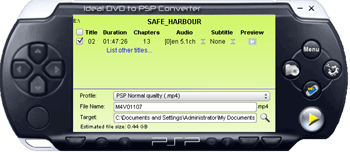
3. Choose a proper title, audio track, subtitle and profile. Ideal DVD to PSP Converter will automatically list the titles which are
longer than 20 minutes. If you want to see all titles on the DVD, please click "List other titles..." switch on the screen.
|
|
Our program will automatically choose the longest title to rip. But on some DVDs, the longest title may be director commentary.
You may click button to preview it first to check if you have chosen the right one. You also can choose multiple titles to convert at the same time just by checking the checkbox beside the title. If you want to adjust the profile to meet your
personal demand, you may refer to How to configure PSP profile to get suitable quality and file size?.
button to preview it first to check if you have chosen the right one. You also can choose multiple titles to convert at the same time just by checking the checkbox beside the title. If you want to adjust the profile to meet your
personal demand, you may refer to How to configure PSP profile to get suitable quality and file size?.
|
4. Specify the output file name as you like. You also can just use the default name.
Attention: Under H.264 profile, it isn't allowed to rename the file name because PSP only support file name as MAQXXXXX.
|
5. Click  icon to choose a proper directory to put the output file. Our program will put it to "My documents\IdealDVD2PSP" by default. Once you
specify a directory, our program will remember it and you needn't re-configure it next time unless you uninstall
our program.
icon to choose a proper directory to put the output file. Our program will put it to "My documents\IdealDVD2PSP" by default. Once you
specify a directory, our program will remember it and you needn't re-configure it next time unless you uninstall
our program.
|
6. Click  button to begin to rip. button to begin to rip.
|
* Step 2: Transfer the converted mp4 file to Sony PSP |
| Method one: When the ripping finished, you will get the following message: |
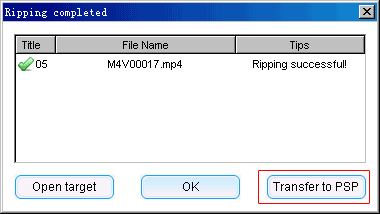 |
Then please connect your PSP to your computer, and then click "Transfer to PSP" button on the above window. Just wait for a while, and our program
will automatically transfer the converted mp4 file to the "Video" folder of your PSP.
Note:
1) In order to avoid corrupting file, you'd better click
"Safely remove USB Mass Storage Device" to disconnect your PSP or wait for a
while after transferring since PSP itself needs several seconds to process
the file.
2) Please make sure the firmware of your PSP is over 3.30 since the older firmware can't
recognize file under "Video" folder. Under old firmware, you should transfer it to "MP_ROOT\100MNV01"
instead.
|
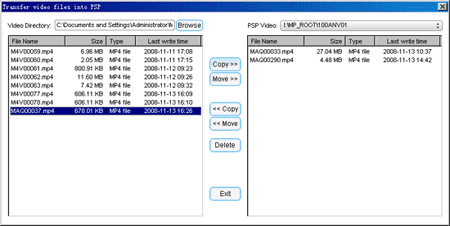
Method two: Click  button, and you will get the following window:
 |
 |
 |
|
1. Click "Browse" button to choose the destination folder where you put the output file. Default is "My documents\IdealDVD2PSP". |
|
2. Highlight the mp4 file you want to transfer to PSP. |
|
3. Click "Copy >>" button to copy the file to PSP. You can also click "Move >>" button to move the file to PSP. |
After getting a message that "Transfer is successful", you will find the file has appeared on the PSP
Video section.
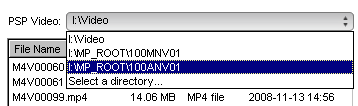
If you use H.264 profile to encode, you should choose "MP_ROOT\100ANV01"
from "PSP Video" dropdown list as shown below and transfer the file named as "MAQxxxxx" to that directory.
|
|
 |
|
Note: In order to avoid corrupting file, you'd better click "Safely remove USB Mass Storage Device" to disconnect your PSP
or wait for a while after transferring because PSP itself needs several seconds to process the file. |
 (Full
function) (Full
function) |
 (Only $29.97,
Lifetime Key) (Only $29.97,
Lifetime Key) |
|
|
[ Return to Ideal DVD to PSP Converter]
|
|